David's Astronomy Pages
Notes - Session 1374 (2025-11-11)

Notes
(S1373)

Notes
Main
Home
Page

Notes
(S1375)
David's Astronomy Pages
|
Notes (S1373) |
Notes Main |
Home Page |
Notes (S1375) |
 |
Session Aims & Highlights |
| - Observing Result - Night Summary Plot - Session Event Log |
|
|
|
Operational Issues |
| - Critical Issues (1),
Major Issues (3),
Minor Issues (5),
Small Defects (8), Continuous Improvement
(17) |
|
| - Figures (5) | |
|
Images from 2025-11-11 >> |
| 2025-11-13 | |
|---|---|
|
|
AllSky Computer - Full Windows 11 Reinstall (including all programs) |
| 2025-11-16 | |
|
|
Pegasus Astro USB Control Hub & new Unity Platform |
|
|
CloudSensor III - Reinstallation |
|
|
iSpy64 - Reinstallation |
Main aims
Equipment & Software
Highlights
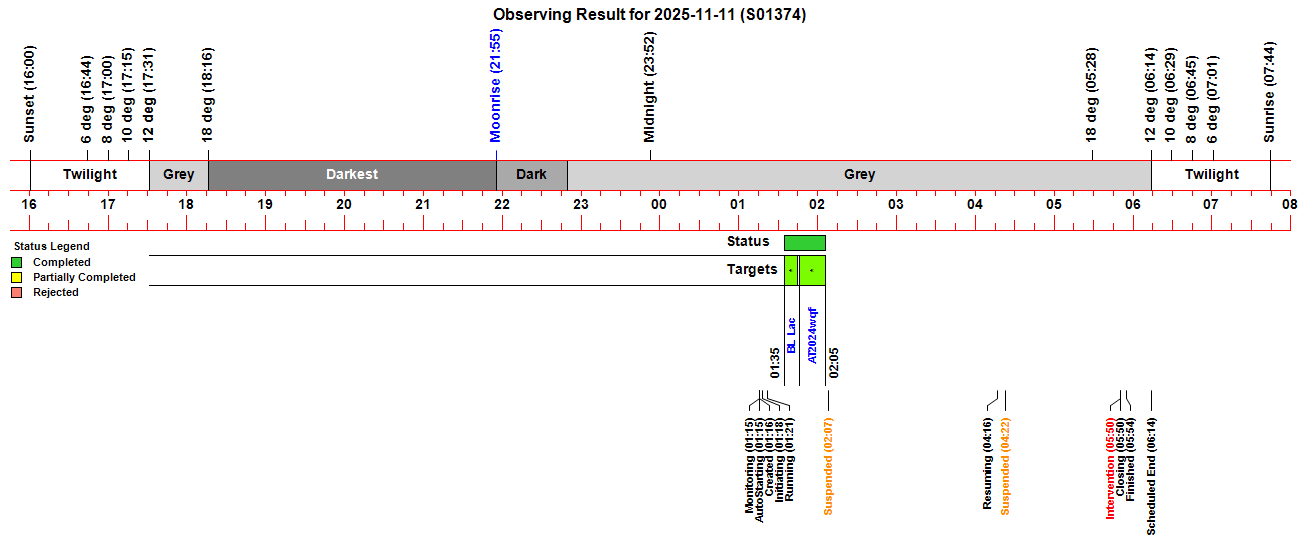
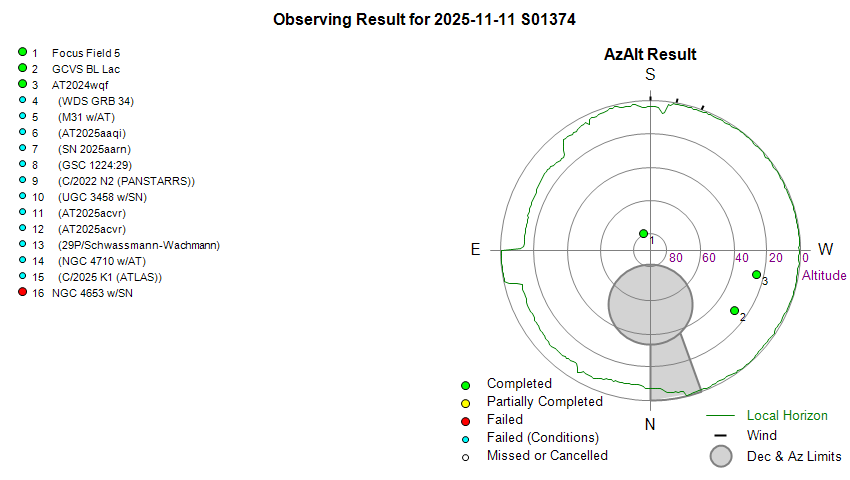
 Targets. 2/14 planned targets were completed. Other targets failed due to cloud & session
suspension.
Targets. 2/14 planned targets were completed. Other targets failed due to cloud & session
suspension. CCD Camera.
No issues with CCD Camera during session.. Dome.
No issues opening/closing the shutter during
the session, and the dome was successfully parked at the end of the session..
CCD Camera.
No issues with CCD Camera during session.. Dome.
No issues opening/closing the shutter during
the session, and the dome was successfully parked at the end of the session..
Summary Plots & Logs
Observing Plan 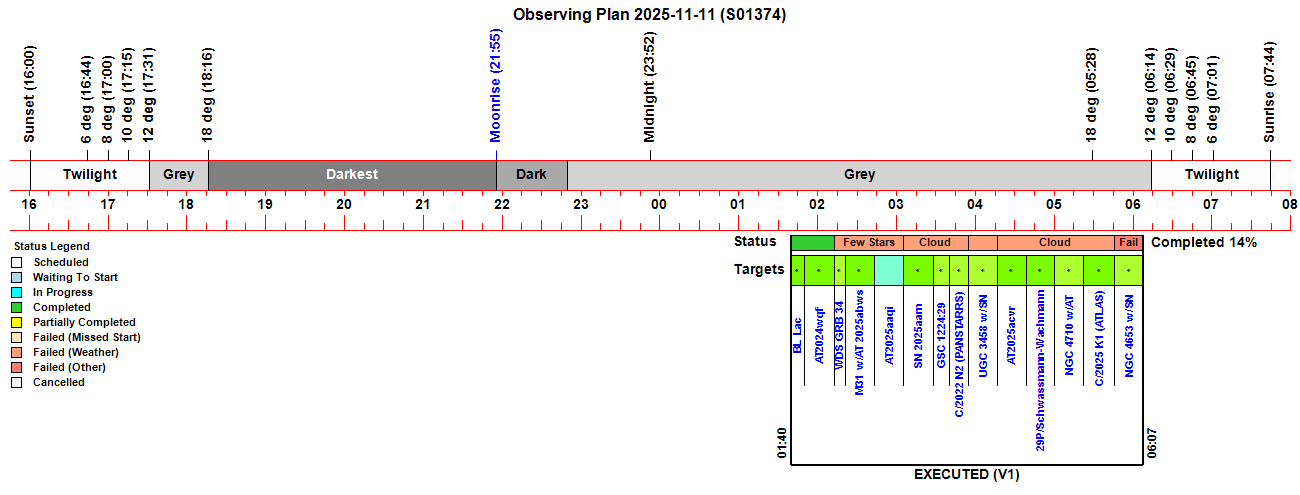 |
||||||||||||||||||||||||||||||||||||||||||||||||||||||||||||||||||||||||||||||||||||||||||||||||||||||||||||||||||||||||||||||||||||||||||||||||||||||||||||||||||||||||||||||||||||||||||||||||||||||||||||||||||||||||||||||||||||||||||||||||||||||||||||||||||||||||||||||||||||||||||||||||||||||||||||||||||||||||||||||||||||
|
Observing Result |
||||||||||||||||||||||||||||||||||||||||||||||||||||||||||||||||||||||||||||||||||||||||||||||||||||||||||||||||||||||||||||||||||||||||||||||||||||||||||||||||||||||||||||||||||||||||||||||||||||||||||||||||||||||||||||||||||||||||||||||||||||||||||||||||||||||||||||||||||||||||||||||||||||||||||||||||||||||||||||||||||||
 |
||||||||||||||||||||||||||||||||||||||||||||||||||||||||||||||||||||||||||||||||||||||||||||||||||||||||||||||||||||||||||||||||||||||||||||||||||||||||||||||||||||||||||||||||||||||||||||||||||||||||||||||||||||||||||||||||||||||||||||||||||||||||||||||||||||||||||||||||||||||||||||||||||||||||||||||||||||||||||||||||||||
 |
||||||||||||||||||||||||||||||||||||||||||||||||||||||||||||||||||||||||||||||||||||||||||||||||||||||||||||||||||||||||||||||||||||||||||||||||||||||||||||||||||||||||||||||||||||||||||||||||||||||||||||||||||||||||||||||||||||||||||||||||||||||||||||||||||||||||||||||||||||||||||||||||||||||||||||||||||||||||||||||||||||
| Dome & Scope Slewing Performance | ||||||||||||||||||||||||||||||||||||||||||||||||||||||||||||||||||||||||||||||||||||||||||||||||||||||||||||||||||||||||||||||||||||||||||||||||||||||||||||||||||||||||||||||||||||||||||||||||||||||||||||||||||||||||||||||||||||||||||||||||||||||||||||||||||||||||||||||||||||||||||||||||||||||||||||||||||||||||||||||||||||
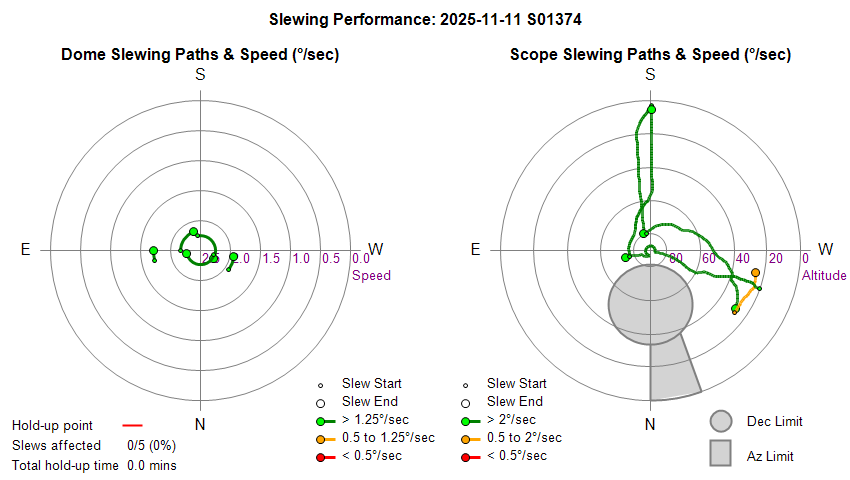 |
||||||||||||||||||||||||||||||||||||||||||||||||||||||||||||||||||||||||||||||||||||||||||||||||||||||||||||||||||||||||||||||||||||||||||||||||||||||||||||||||||||||||||||||||||||||||||||||||||||||||||||||||||||||||||||||||||||||||||||||||||||||||||||||||||||||||||||||||||||||||||||||||||||||||||||||||||||||||||||||||||||
| Slew/Centering Performance | ||||||||||||||||||||||||||||||||||||||||||||||||||||||||||||||||||||||||||||||||||||||||||||||||||||||||||||||||||||||||||||||||||||||||||||||||||||||||||||||||||||||||||||||||||||||||||||||||||||||||||||||||||||||||||||||||||||||||||||||||||||||||||||||||||||||||||||||||||||||||||||||||||||||||||||||||||||||||||||||||||||
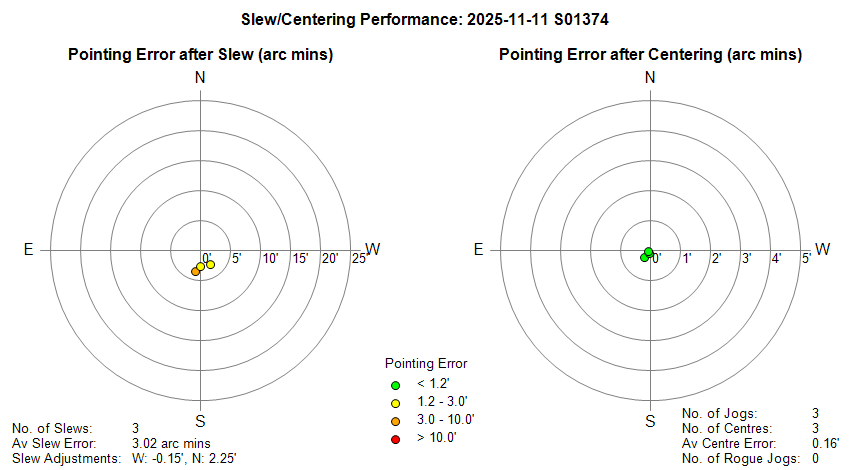 |
||||||||||||||||||||||||||||||||||||||||||||||||||||||||||||||||||||||||||||||||||||||||||||||||||||||||||||||||||||||||||||||||||||||||||||||||||||||||||||||||||||||||||||||||||||||||||||||||||||||||||||||||||||||||||||||||||||||||||||||||||||||||||||||||||||||||||||||||||||||||||||||||||||||||||||||||||||||||||||||||||||
| Guiding Performance | ||||||||||||||||||||||||||||||||||||||||||||||||||||||||||||||||||||||||||||||||||||||||||||||||||||||||||||||||||||||||||||||||||||||||||||||||||||||||||||||||||||||||||||||||||||||||||||||||||||||||||||||||||||||||||||||||||||||||||||||||||||||||||||||||||||||||||||||||||||||||||||||||||||||||||||||||||||||||||||||||||||
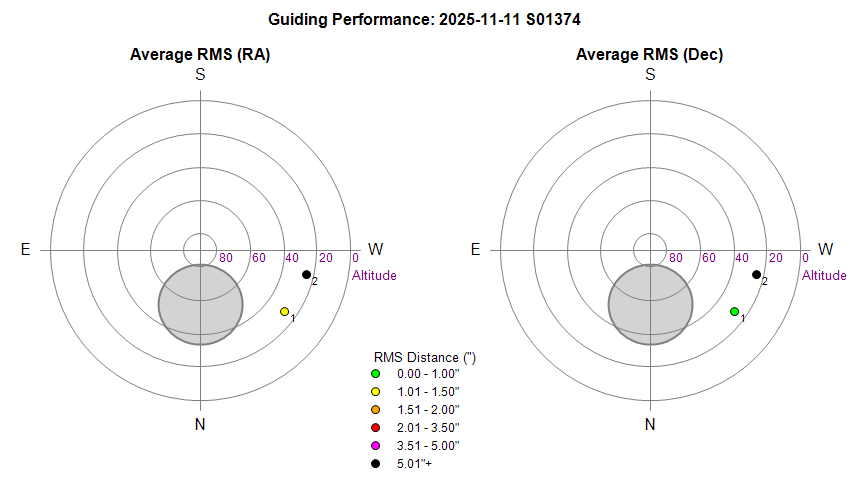 |
||||||||||||||||||||||||||||||||||||||||||||||||||||||||||||||||||||||||||||||||||||||||||||||||||||||||||||||||||||||||||||||||||||||||||||||||||||||||||||||||||||||||||||||||||||||||||||||||||||||||||||||||||||||||||||||||||||||||||||||||||||||||||||||||||||||||||||||||||||||||||||||||||||||||||||||||||||||||||||||||||||
| Sky Conditions (Locate Frames) | ||||||||||||||||||||||||||||||||||||||||||||||||||||||||||||||||||||||||||||||||||||||||||||||||||||||||||||||||||||||||||||||||||||||||||||||||||||||||||||||||||||||||||||||||||||||||||||||||||||||||||||||||||||||||||||||||||||||||||||||||||||||||||||||||||||||||||||||||||||||||||||||||||||||||||||||||||||||||||||||||||||
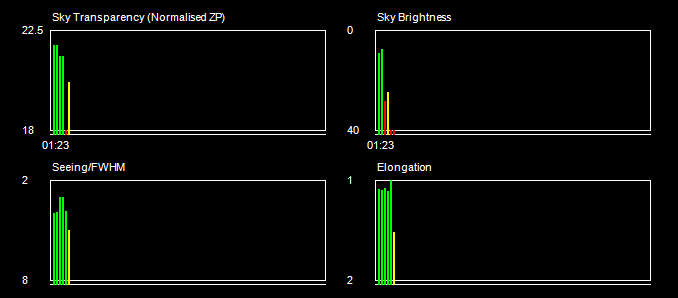 |
||||||||||||||||||||||||||||||||||||||||||||||||||||||||||||||||||||||||||||||||||||||||||||||||||||||||||||||||||||||||||||||||||||||||||||||||||||||||||||||||||||||||||||||||||||||||||||||||||||||||||||||||||||||||||||||||||||||||||||||||||||||||||||||||||||||||||||||||||||||||||||||||||||||||||||||||||||||||||||||||||||
|
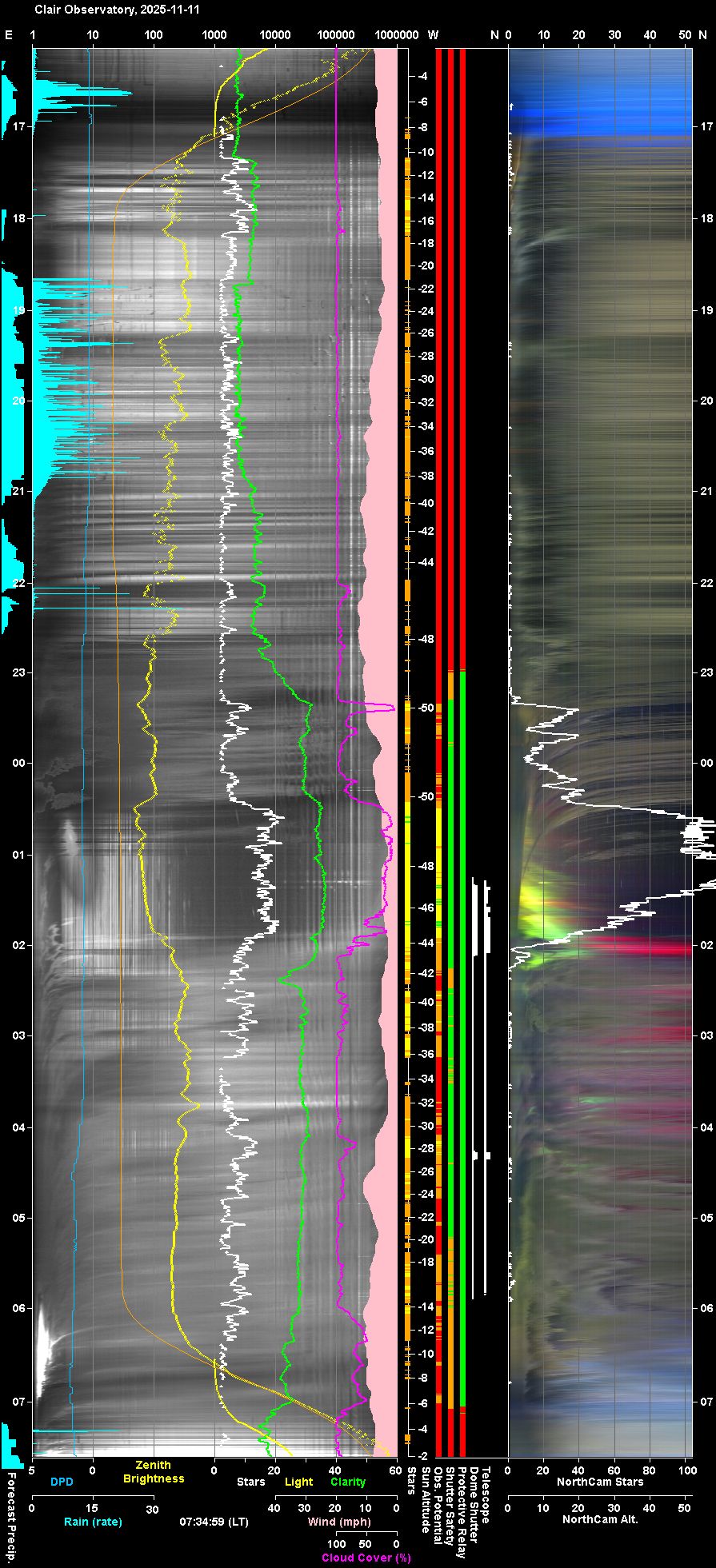
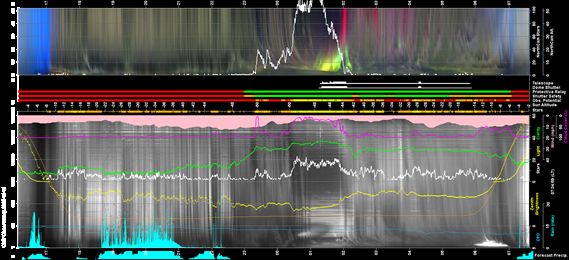
Night Sky Summary Plot Top axis: Sky Brightness at Zenith (in ADU/s) Lefthand axis: Local Time (hh LT). Righthand axis: Sun Altitude (degs) Note: The NorthCam Star Count line is unreliable and should be ignored (The AstroNorthCam 'Find' Star method is producing many false positives from clouds) |
||||||||||||||||||||||||||||||||||||||||||||||||||||||||||||||||||||||||||||||||||||||||||||||||||||||||||||||||||||||||||||||||||||||||||||||||||||||||||||||||||||||||||||||||||||||||||||||||||||||||||||||||||||||||||||||||||||||||||||||||||||||||||||||||||||||||||||||||||||||||||||||||||||||||||||||||||||||||||||||||||||
 |
||||||||||||||||||||||||||||||||||||||||||||||||||||||||||||||||||||||||||||||||||||||||||||||||||||||||||||||||||||||||||||||||||||||||||||||||||||||||||||||||||||||||||||||||||||||||||||||||||||||||||||||||||||||||||||||||||||||||||||||||||||||||||||||||||||||||||||||||||||||||||||||||||||||||||||||||||||||||||||||||||||
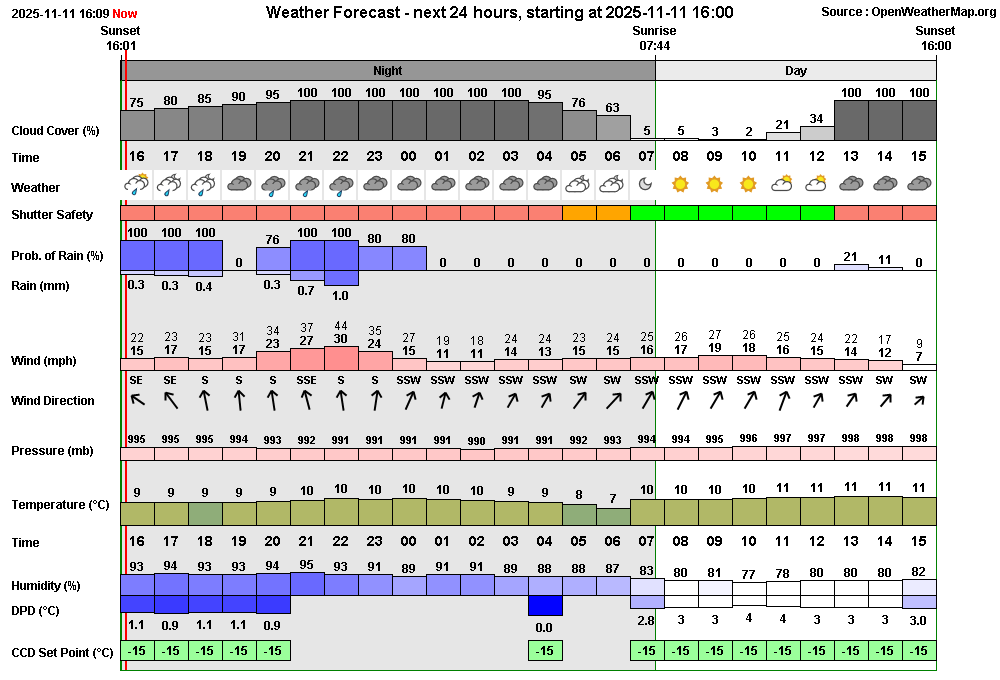
| Actual Weather vs Pre-Session Weather Forecast | ||||||||||||||||||||||||||||||||||||||||||||||||||||||||||||||||||||||||||||||||||||||||||||||||||||||||||||||||||||||||||||||||||||||||||||||||||||||||||||||||||||||||||||||||||||||||||||||||||||||||||||||||||||||||||||||||||||||||||||||||||||||||||||||||||||||||||||||||||||||||||||||||||||||||||||||||||||||||||||||||||||
 |
||||||||||||||||||||||||||||||||||||||||||||||||||||||||||||||||||||||||||||||||||||||||||||||||||||||||||||||||||||||||||||||||||||||||||||||||||||||||||||||||||||||||||||||||||||||||||||||||||||||||||||||||||||||||||||||||||||||||||||||||||||||||||||||||||||||||||||||||||||||||||||||||||||||||||||||||||||||||||||||||||||
 |
||||||||||||||||||||||||||||||||||||||||||||||||||||||||||||||||||||||||||||||||||||||||||||||||||||||||||||||||||||||||||||||||||||||||||||||||||||||||||||||||||||||||||||||||||||||||||||||||||||||||||||||||||||||||||||||||||||||||||||||||||||||||||||||||||||||||||||||||||||||||||||||||||||||||||||||||||||||||||||||||||||
| Session Event Log | ||||||||||||||||||||||||||||||||||||||||||||||||||||||||||||||||||||||||||||||||||||||||||||||||||||||||||||||||||||||||||||||||||||||||||||||||||||||||||||||||||||||||||||||||||||||||||||||||||||||||||||||||||||||||||||||||||||||||||||||||||||||||||||||||||||||||||||||||||||||||||||||||||||||||||||||||||||||||||||||||||||
|
||||||||||||||||||||||||||||||||||||||||||||||||||||||||||||||||||||||||||||||||||||||||||||||||||||||||||||||||||||||||||||||||||||||||||||||||||||||||||||||||||||||||||||||||||||||||||||||||||||||||||||||||||||||||||||||||||||||||||||||||||||||||||||||||||||||||||||||||||||||||||||||||||||||||||||||||||||||||||||||||||||
| Session Alerts & Alarms | ||||||||||||||||||||||||||||||||||||||||||||||||||||||||||||||||||||||||||||||||||||||||||||||||||||||||||||||||||||||||||||||||||||||||||||||||||||||||||||||||||||||||||||||||||||||||||||||||||||||||||||||||||||||||||||||||||||||||||||||||||||||||||||||||||||||||||||||||||||||||||||||||||||||||||||||||||||||||||||||||||||
|
||||||||||||||||||||||||||||||||||||||||||||||||||||||||||||||||||||||||||||||||||||||||||||||||||||||||||||||||||||||||||||||||||||||||||||||||||||||||||||||||||||||||||||||||||||||||||||||||||||||||||||||||||||||||||||||||||||||||||||||||||||||||||||||||||||||||||||||||||||||||||||||||||||||||||||||||||||||||||||||||||||
Back to Top
The majority of the issues ticketed below are ones that relate to
problems that
occured in the day(s) following the S1374 session itself.
 Closed
2025-11-16 (AllSky/Weather Computer, Windows 11, Programs) Closed,
pending completion of Windows Reinstall
2025-11-15 (AllSky/Weather Computer, Windows) Closed,
pending completion of Windows Reinstall
2025-11-15 (CloudSensor III, ZIgbee Smart Plug) To
investigate & fix
2025-11-12 (CloudSensor III, ZIgbee Smart Plug) Closed
after review
2025-11-16 (AllSky/Weather Computer) To
investigate
2025-11-11 (AllSky/Weather Computer, Windows) To
investigate
2025-11-16 (AllSky/Weather Computer, AstroAllSky, CCDSoft, TheSky6)
Resolved 2025-11-18+ (AstroMain , User Awareness)
Resolved 2025-11-19 (Observatory Computer, AstroPlan, User Awareness) Fixed
2025-11-11 (ObsEnv file) To
review
2025-11-16 (Session, AllSky/Weather Computer, CCDSoft) To
investigate
2025-11-16 (AllSky/Weather Computer, AstroAllSky, CCDSoft, TheSky6) Fixed 2025-11-18
(AstroAllSky 3.25.5)
Resolved via workaround 2025-11-18 (AllSky Computer, PegasusAstro USB Control Hub,
AstroObsCam, User Awareness) Fixed 2025-11-19
(AstroMag 1.5.12) Closed 2025-11-19
(Eaton UPS, Observatory Computing Bay, Power) Done
2025-11-11 (AstroMain 3.78.5)
Closed
2025-11-16 (AllSky/Weather Computer, Windows 11, Programs) Closed,
pending completion of Windows Reinstall
2025-11-15 (AllSky/Weather Computer, Windows) Closed,
pending completion of Windows Reinstall
2025-11-15 (CloudSensor III, ZIgbee Smart Plug) To
investigate & fix
2025-11-12 (CloudSensor III, ZIgbee Smart Plug) Closed
after review
2025-11-16 (AllSky/Weather Computer) To
investigate
2025-11-11 (AllSky/Weather Computer, Windows) To
investigate
2025-11-16 (AllSky/Weather Computer, AstroAllSky, CCDSoft, TheSky6)
Resolved 2025-11-18+ (AstroMain , User Awareness)
Resolved 2025-11-19 (Observatory Computer, AstroPlan, User Awareness) Fixed
2025-11-11 (ObsEnv file) To
review
2025-11-16 (Session, AllSky/Weather Computer, CCDSoft) To
investigate
2025-11-16 (AllSky/Weather Computer, AstroAllSky, CCDSoft, TheSky6) Fixed 2025-11-18
(AstroAllSky 3.25.5)
Resolved via workaround 2025-11-18 (AllSky Computer, PegasusAstro USB Control Hub,
AstroObsCam, User Awareness) Fixed 2025-11-19
(AstroMag 1.5.12) Closed 2025-11-19
(Eaton UPS, Observatory Computing Bay, Power) Done
2025-11-11 (AstroMain 3.78.5) SetMagLimitDetectThreshold(2)
EstimateMagLimit() Done
2025-11-11 (AstroMain 3.78.5) Done
2025-11-14 (AstroLaunch 1.14) Done
2025-11-14 (AstroWeather 1.29) Done
2025-11-15 (AstroLaunch 1.14.1) Done
2025-11-15 (AstroWeather 1.29) Done
2025-11-15 (AstroMove 1.17) Done
2025-11-16 (AstroObsCam 1.12) Done
2025-11-16 (AstroLaunch 1.14.2) To
investigate
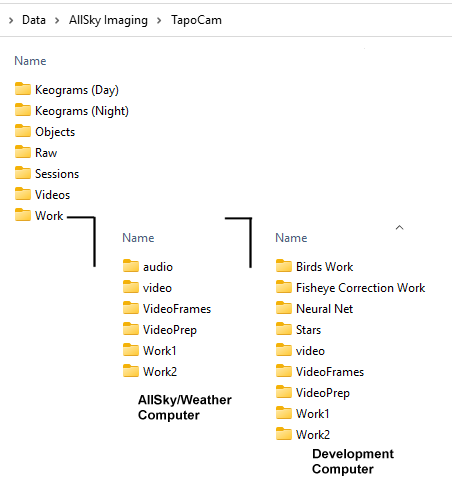
2025-11-11 (AstroMag 1.5.11 ) 'audio', 'video', 'VideoFrames', 'VideoPrep', 'Work
(Work1)', 'Work2' 'Keograms (Day)', 'Keograms (Night)',
'Objects', 'Raw', 'Sessions', 'Videos', 'Work' . 'C:/Data/AllSky
Imaging/TapoCam/Work'
'Birds Work', 'Fisheye Correction Work', 'Neural Net', 'Stars' Done 2025-11-18 (AllSky/Weather
Computer, TapoCam Folder, AstroNorthCam 1.7, iSpy64 settings, )-
Main work is done with the HandleFrameSaved() routine (in Form1.vb) which is
called by globals.FrameHandlerLoop() when bTriggerHandleSavedFrame is True.
- This is set True by 'Form1.cam_FrameSaved(ByVal capImage As
System.Drawing.Bitmap, ByVal imgPath As String) Handles cam.FrameSaved'
handling routine.
- The cam.FrameSaved event is raised by
CamCapture.Tmr2_Tick(ByVal sender As Object, ByVal e As System.EventArgs)
Handles TmrSaved.Tick. If
cboxShowCentreLine.Checked Or SecondsSince(LastHandleSavedFrameTime) > 5
Then
bTriggerHandleSavedFrame = True
LastHandleSavedFrameTime = Now()
End if Done
2025-11-18 (AstroObsCam 1.12.1) - From inside the AstroPlan project in Visual Studio
-
Go to 'Project/Manage NuGet Packages.. Go to Browse, Enter WinSCP in
the search window
- Select WinSCP by prikryl v 6.5.4 which then gives
dialog tab with current version (5.21.7) and the latest version (6.5.4).
- Clicked Update, and the new WinSCP package is updated
(Project's package folder is updated with 'WinSCP ..5.4' folder which
replaces the earlier 'WinSCP.5.21.7' folder)
- The program's bin folder
now contains new WinSCP.exe and WinSCPnet.dll files, with version
6.5.4.16408 & 1.16.0.16408 respectively.
- The two new files are copied
into program's Progam Folder on the Local Computer and the Observatory
Computer.
- AstroPlan deployed as per usual use AstroMove. Done 2025-11-19
(AstroPlan 1.44, AstroAllSky 3.26) Done 2025-11-19
(AstroLaunch 1.14.3) To
do 2025-11-20 (AstroAllSky 3.26.1, AstroNorthCam 1.7.1) To review 2025-11-19+
(AstroMain, User Awareness)
To review 2025-11-19+
(AstroMain, User Awareness)  To
do 2025-11-30+ (Development Computer, Observatory Computer,
AllSKy/Weather Computer )
To
do 2025-11-30+ (Development Computer, Observatory Computer,
AllSKy/Weather Computer )Back to Top Issue, Back to Top
Fig 1. MagnetometerStackChart (2025-11-11)
Chart illustrating x axis labelling issue when this graph is presented with
the rarely used scale of 10 px per 200 nT, that was necessary for this night
with very high geomagnetic activity.
The labels +600, +500, +400,
+300, +200 , -200, -300, -400, -500, -600
overwrite each other and the reference value. In contrast the
intervals +1000 to +600 and -600 to 1000 are unlabelled

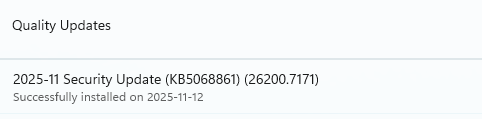
Fig 2. KB5068861 (2025-11-12)
Fig 1a. KB5068861 installed
-
Microsost Support Topic KB5068861
-
Windows Forum Page on KB5068861
Fig 1b. Uninstalling
KB5068861
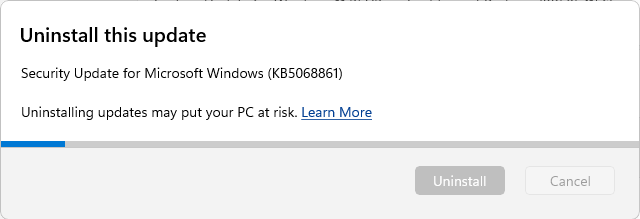
Fig 3 Night Summary Plot showing impact of slow computer performance on AstroAllSky Program (2025-11-12)
AstroMag showing be draw a taking an image and adding a keogram line onto plot every 30s, but instead image was only being taken and keogram line added every 90s or so.
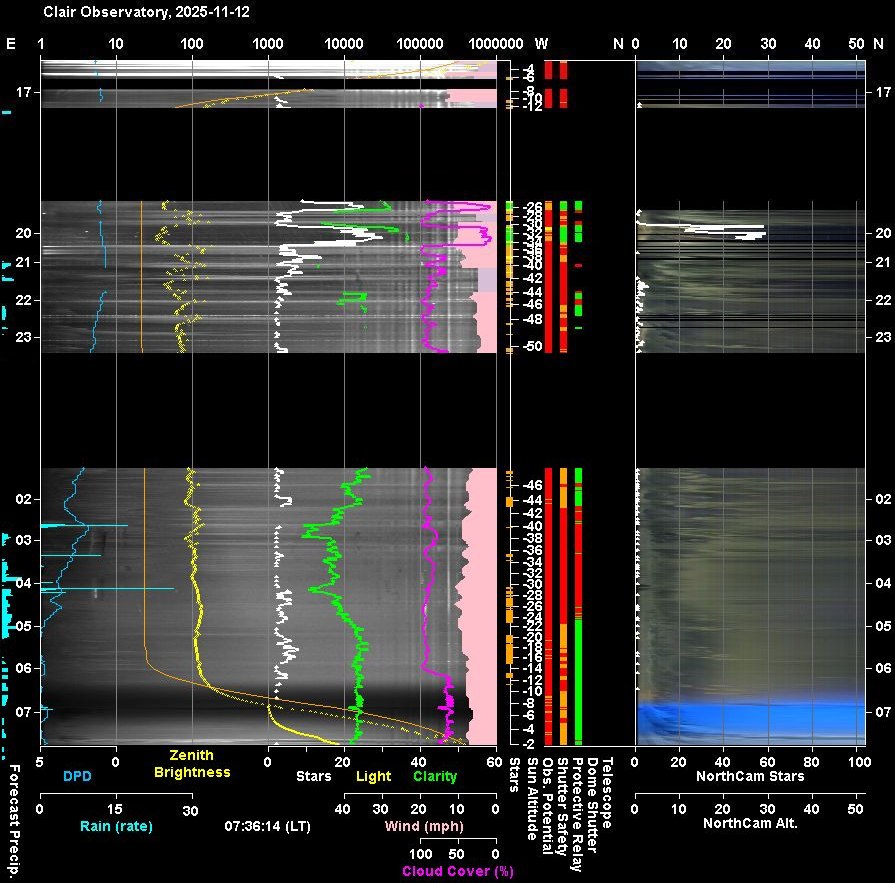
Fig 4 Unexpected jump in
OTA Temperature Difference from Outside Dew Point.
Plot
shows a clear 1°C increase in the difference between OTA temperature (orange
line) and outside dew point (white line). The temperature difference jumps
from roughly +1°C to roughly +2°C at around 09:00. This was the point
when the '2025-11-16 General Session' finished and the '2025-11-17 General
Session' started. This was associated with a change in DewHeaterOffset from
a value of 1.0 to a value of 2.0 (evidenced by value in DewHeater Offset's
data field on the Observatory tab). This is hypothesized to be due to the
Program re-reading the program's settings file, when the new session began,
rather than continuing with existing settings.
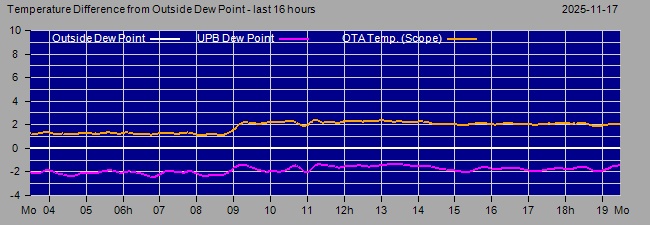
Fig 5 TapoCam Revised Folder Structure
(2025-11-18)
Back to Top Issue, Back to Top
Introduction
The AllSky/Weather Computer (a span class="title">Toshiba Dynabook Satellite Pro C50-E-102),
which had been
has became un-operatable on 2025-11-12 / 2025-11-13.
when it began operating very slowly and in particular become unworkably slow for
the AstroAllSky Program. This followed directly from a Windows Update &
Computer restart on 2025-11-12. Attempts to resolve the problem failed -
uninstalling the updates applied on 2025-11-12 failed to resolve the very slow
computer operations. A restore to an earlier restore point failed, and left the
computer in a position where login to by both user account and admin account
would lead to black screens. Rebooting into Recovery Mode / troubleshooter
didn't lead to a resolution of the new problem, and a new restore attempt led
nowhere as the system said there where no restore points available to restore
from.
Finally there was nowhere to go other than to attempt to Reset the PC. This
was first attempted using the 'Keep my files' and 'Local reinstall'
options. However this failed - after applying the reset, the system would
go into a loop of 'Preparing things' and then 'Undoing changes', and eventually
the system returned to the existing state which was still giving a black screen
after logging into the user account.
In the end it was necessary to perform a full Windows 11 reinstall using a
'Windows 11 Media' disk that was created on a USB drive using Microsoft's Media
Creation Tool from the Development Computer.
Copies a selection of files and screenshots of key settings had previously been taken prior to earlier upgrade to Window 11 on 2025-10-28 (see AllSky/Weather Computer - Upgrade to Windows 11)).
Computer Setup, Stage 1 - Basic Operatability
Windows
- Admin and User Account
- View
- Desktop
Picture, Desktop DPI, Icons Sizes
- Taskbar Toolbars: Astro, Comp, Apps
- Control Panel
- Device Manager
-- MS Edge, Google Search
Provider.
- ExplorerPatcher
Core Software
- UltraVNC (for Remote Control)
- Kaspersky Internet Security (Firewall
& AntiVirus)
General Software
- TextPad 4 (for File
Editing)
- ACDSee Classic (for Image Viewing)
- PaintShopPro 5
-
Dimension 4 (for Time Sync)
Computer Setup, Stage 2 -
Observatory Software (core)
- CCDSoft5
- TheSky6
- Pegasus USB HUb
- ASCOM 7.1
- Starlight Xpress SXV Plug In.dll (to CCDSoft Version 5 /
Camera Plug-Ins), for Oculus Camera Access
- AstroLaunch
- AstroWeather
-
AstroAllSky
- Aurora Cloud Sensor III (3.2)
- CumulusMX (MX9)
- ffmpeg-win32-static
-- ffmpeg-win64-static
Computer Setup, Stage 3 - Observatory Software
(other)
- AstroObsCam
- iSpy
- AstroNorthCam
Steps towards setting new computer up for AllSky/Weather Role
Update 2025-11-13 (Day 1)
Update 2025-11-14 (Day 2a)
Update 2025-11-15 (Day 3)
Error during Defect Pixel Repair

	Exception has been caught by MyExHandler, see logfile for details

	Imaging has unexpectedly stopped.  Exception encountered
	TakeAllSkyFrameJobs (master Try block) :

	System.Runtime.InteropServices.COMException (0x800404B5):
  Error:
	memory error. Error code = 205 (0xcd) at globals.vb:line 15952. .
There
was then a System.IO.__Error.WinIOError at \globals.vb:line 29803Update 2025-11-16 (Day 4)
	Magnitude zero point:  0
     Aperture diameter
	in pixels: 6
     Detection Threshold :  2.5
- show inventory now detects all significant starsUpdate 2025-11-17 (Day5)
Lessons
Other Notes:
vssadmin - command tool for listing restore points & backups volumes
(cmd/administration examples )
vssadmin list shadows
' Shows each restore point with creation time, ID, and volume.
vssadmin list shadowstorage ' Displays used, allocated, and maximum
space per volume (totals)
vssadmin list providers
' Shows installed VSS providers (e.g., Microsoft Software Shadow Copy
Provider).
vssadmin delete shadows /for=C: /oldest '
Delete oldest shadow copy
Created a script
C:/Data/Computer/Scripts/ListRestorePoints.bat that lists the restore points
that have been created on the computer.
Back to Top
Introduction
A Pegasus Astro USB Control Hub (UCH)
was installed in the observatory back in 2021 (2021-10-16) where it replaced an
existing standard 4 port USB Hub attached to AllSky/Weather computer.
All 6 USB ports on the UCH Hub are occupied.
The Hub has been used via
Pegasus UCH Control Software and ASCOM driver (ASCOM.UCH.Switch) through not
both at the same time. ASCOM was used to control the USB4 port in
order to turn off/turn on a USB Camera as part of the AstroObsCam program. But
if there was a need to reset another USB port, the ASCOM Connection /
AstroObsCam had to be closed before the UCH Control Program could be
successfully connected. After use the connection had to be manually closed and
ASCOM connection restarted. So operation was not that convenient.
The
Pegasus Unity Platform, which is already in use of the Observatory Computer
since installing a UPB Powerbox V3 on the telescope in July 2021 (see
New
Powerbox - Pegasus Astro UPB V3 (2025-07-13) &
Pegasus Unity
Platform 2.12 & UPB v3 1.6 Firmware (2025-11-09) ) offers
the capability to offer multi-client access to the UCH box and gets around the
previous limitations.
With the associated with full reinstallation of
WIndows and all applications on 2025-11-13 to 2025-11-16, it was decided that
the previously installed UCH Control Software and ASCOM driver would be replaced
by the Pegasus Unity Platform and its new ASCOM driver (ASCOM.Driver1.Switch).
This was done on 2025-11-15 with the new setup looking like this
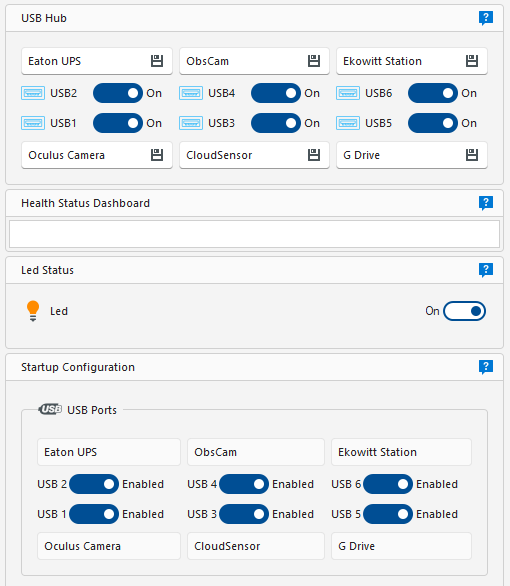
The upper section is used to enter
names of the USB devices using each USB Port, and to
individually turn off/ turn on USB ports.
- In my setup all 6
ports are used, however usb6 for 'Ekowitt Station' is just used for
supplying 5v power to Ekowitt Gateway Hub (it is not used for data comms to
the computer, that is provided instead by means of ethernet cable to
Observatory's Ethernet Switch & LAN.)
The lower section is used
to specify which ports are enabled (on) when the USB Control Hub is started
or reset.
- In my setup all 6 ports are specified to be enabled
(on) when the USB Control Hub is started up.
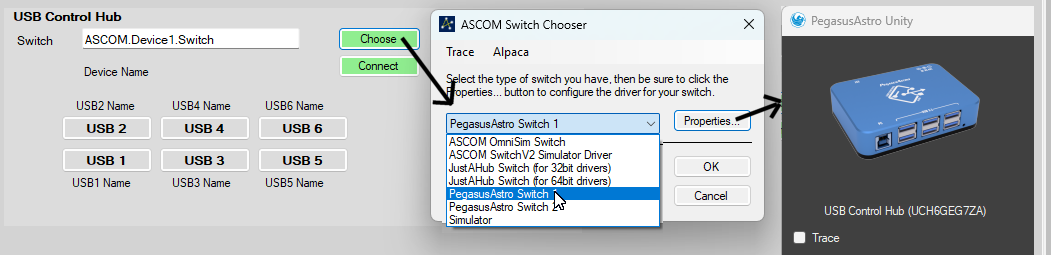
In order for the ASCOM driver to be available. The driver has to be selected
through an ASCOM chooser and the properties of the Switch Driver need to be
accessed in order to select the UCH Control Hub. As this was an extra step
(which AstroObsCam didn't have to formerally do) I had to add a means to do
this.
It was decided to create a Tools tab in the AstroWeather program
(v1.29) to do this task.
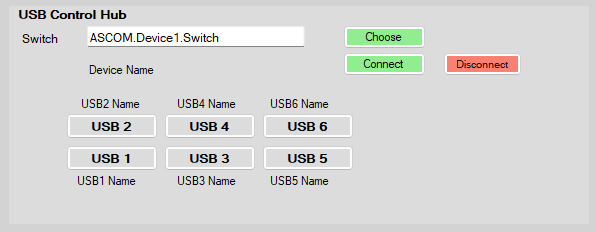
Choose is used to access the ASCOM Switch Chooser and after selecting
'PegasusAstro Switch 1' (to get the ASCOM.Device1.Switch driver) the Properties
button is used to select the picture of USB Control Hub. Finally Ok button is
clicked to complete the process.
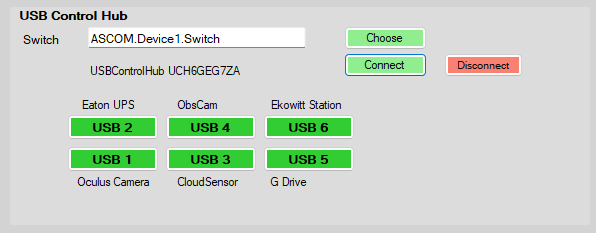
Optionally a connection to the USB Control Hub can be made at this point to bring up a virtual view
of the USB Hub from where USB Ports can if required be individually turned
off/turned on, without opening the Unity user-interface.
Beside the change to AstroWeather (1.29) changes also had to be made
to other programs:
- AstroObsCam (1.12) - modified to use
Pegasus Unity's 'ASCOM.Device1.Switch' driver instead of ASCOM.UCH.Switch
- AstroLaunch (1.14) - modified with option to launch 'Pegasus Unity
(instead of former 'Pegasus USB Hub Software' )
Update 2025-11-18
An issue has arisen involving the USB Control Hub. :
"After restarting the AllSky/Weather Computer the AstroObsCam program
couldn't connect to USB Control Hub Switch"
Twice now
the AstroObsCam client program couldn't connect to USB Control Hub via ASCOM
after restarting the Computer, and PegasusAstro Unity UI couldn't find the
USB Control Hub (UCH). AstroWeather's new Tools tab has an ASCOM
Switch Chooser and whilst it was to open Properties for the ASCOM Driver and
get an PegasusAstro Unity dialog box it was just a blank dark grey dialog,
without the expected UCH picture icon. Although there was no connection to
the USB Control Hub, all the USB devices using the Hub were all working
(obviously pass-through USB connections to the computer worked).
On the first time this happened the problem was resolved by disconnecting the Control Hub's USB Cable from the Computer and then connecting it again. This is inconvenient as it involves stopping all the software that use the end devices and going out to the observatory and physically resetting the USB cable connection to the USB Control Hub.
On the second occasion a
different strategy was used, which was to Disable the 'USB Serial Port
(COM4) in Device Manager and then renable it. This worked and both
Unity Platform and AstroObsCam were able to be to find the USB Control Hub
again, and there was no impact on connected USB devices. So a
sufficently adequate solution or workaround.
It is possible that the
problem occurs because AstroObsCam didn't disconnect from the ASCOM
connection to the USB Control Hub, before the program was closed. This
may need to be action taken by the user before restarting the computer or a
modification to the program itself to force a disconnection during program
exit. Details s about issue have been sent to Pegasus Astro for their
thoughts. They provided a link to the
USB Tree view tool
and suggested that it may help to investigate any USB/COM port assignment
issues on the PC before ASCOM or any other driver kicks in.
Whilst UsbTreeView hasn’t yet been used for that precise purpose, a
baseline USB Tree View picture for the AllSky/Weather Computer has been captured
and is shown in a S1375 Session Notes (see
AllSky/Weather Computer - USB Tree View (2025-11-20)).
Back to Top
Introduction
CloudSensor III has been run on the
AllSky/Weather Computer for several years where it has had the role of operating
the CloudSensor Head and collecting rain, clarity and light sensor data, which
is then read by and distrubuted onwards by AstroWeather program to several other
Observatory programs : AstroAllSky (also running on AllSky/Weather
Computer) and AstroMain & AstroGuard (running on the Observatory Computer).
It has been run on Windows 10 and later on Windows 11, with the program
installed in 'C:\Program Files (x86)\Aurora Eurotech\Cloud Sensor III'.
Following a computer issue on 2025-11-12, the Windows 11 Operating System
had to be fully reinstalled, and all software reinstalled & re-setup.
These notes describe the reinstallation of CloudSensor III and various
problems encountered, and their solution or mitigation, some of the issues
relate to memory loss over how the CloudSensor III was originally installed
and operated.
Initial Reinstallation (2025-11-15 am)
New Reinstallation (2025-11-15 pm)
Fix (2025-11-15 pm)
Back to Top
Introduction
iSpy64 has been run on the
AllSky/Weather Computer since Nov 2024 when it began to be used for accessing
video stream coming from the Observatory's NorthCam Camera - a Tapo C325WB low
light colour camera - used to monitor for and record Aurora in the northern sky.
(iSpy64 is more useful for me than the more recent iSpy Agent
Software, or other products like VLC, as it provides more convenient means for
providing jpg pictures that can be picked up by my own AstroNorthCam program)
iSpy64 has been run on Windows 10 and more laterally on Windows 11, with the program
installed in 'C:\Program Files\iSpy\'
Following a computer issue on 2025-11-12, the Windows 11 Operating System
had to be fully reinstalled, and all software reinstalled & re-setup.
These notes describe the reinstallation of iSpy64 and the various
problems encountered, and their solution or mitigation.
Reinstallation (2025-11-14)
Continued Efforts (2025-11-15)
Fix (2025-11-16)
Back to Top
| This Web Page: | Notes - Session 1374 (2025-11-11) |
| Last Updated : | 2026-10-07 |
| Site Owner : | David Richards |
| Home Page : | David's Astronomy Web Site |